If you’re planning to build a website or publish a blog post, you’ve probably heard the word permalink pop up. But what is a permalink, really? In simple words, it’s the permanent link to a page on your website, like the official street address of your house. No matter how many times you update your content, this link remains the same and tells people (and Google) exactly where that page is located. In this blog, we’ll break down what a permalink is, why it matters, how to pick the right permalink structure, and how Yoast SEO helps you manage everything easily.
Quick note: If your website is already established, changing existing permalinks can cause broken links and SEO issues. Don’t worry, we’ll show you how to do it safely later in this guide.
Key takeaways
- A permalink is a permanent link to a specific page on your website, ensuring a stable URL even when content updates occur
- Choosing the right permalink structure improves SEO by creating clean, readable, and memorable URLs
- Changing existing permalinks can result in broken links; always set up redirects when updating them to maintain SEO value
- Best practices include keeping permalinks short, using hyphens, and avoiding dates unless necessary for clarity
- Tools like Yoast SEO help manage permalinks effectively and prevent 404 errors during changes
What is a permalink?
Before we go any deeper, let’s start with the basics: what is a permalink? A permalink (short for “permanent link”) is the stable URL that points to a specific page or post on your website. Think of it as the forever address of a piece of content. Even if you update the page, the permalink remains the same, ensuring that people and search engines can always find it.
 Fun fact:
Permalinks gained popularity around the early 2000s, when bloggers sought clean, permanent URLs instead of long, messy links filled with numbers and symbols. The idea quickly spread across blogging platforms, and that’s how permalinks became a standard part of the web.
A permalink is usually made up of two main parts:
- Your domain name (like yourdomain.com)
- The slug, which is the last part of the URL, tells people what the page is about
So a clean permalink might look like:
→ https://yourdomain.com/sponsored-tweets-guide
And it will always lead to that exact guide.
Compare that to a messy, auto-generated URL like:
→ https://yourdomain.com/post-id?=5726fjwenfkd
The first one is easier to read, easier to remember, more suitable for sharing, and more beneficial for SEO. That’s precisely why understanding what the permalink in WordPress is so important, especially when your site grows, and you want your content to be easy to find.
Permalinks can also include categories or subfolders depending on your structure. For example:
→ https://yourdomain.com/blog/best-yoga-poses
No matter how your website changes on the backend, a permalink should always point to the same page. However, if you ever update your URL structure or change the slug, you’ll need to set up redirects; otherwise, the original permalink won’t work. We will discuss it further later in this blog post.
Clear, simple permalinks make your content easier to read, index, and trust. That’s why choosing a proper permalink structure early on matters so much.
A brief overview of permalink anatomy
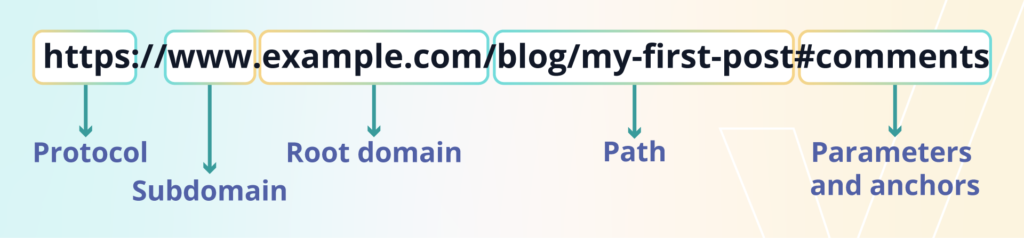
Now that you know what a permalink is, let’s quickly break down what it’s actually made of. A permalink may seem simple on the outside, but each part of it has a specific purpose. Think of it like a small puzzle; every piece helps your browser understand exactly where to take you.
Let’s use a sample URL to make things easy:
Here’s a brief overview of each element in a permalink:
| Protocol (or scheme) | This is the beginning of every URL, the http:// or https:// part. It tells your browser how to connect to a website.
→ http:// is the old, not-so-secure version Today, https:// is a must, especially if you care about trust, SEO, and safety. |
| Subdomain | This is the little prefix that comes before your main domain. In our example, it’s www. You can also use subdomains like shop.example.com or blog.example.com when you want to separate different sections of your website. |
| Root domain (or hostname) | This is your main website address, the part you buy, like example.com.
It has two pieces: → The name you choose (example) Together, they form the foundation of your website’s identity. |
| Path (or slug) | Everything that comes after the domain is usually the part WordPress users think of as the permalink.
In our example: → The path ( In WordPress, you can easily edit the slug for every post or page to make your permalink clean and SEO-friendly. |
| Parameters and anchors (optional extras) | These parts don’t appear in every permalink, but when they do, they provide additional information.
Parameters come after a question mark, like Anchors are denoted by a hash (#), such as #comments, and direct the visitor to a specific section on the same page |
Difference between permalinks and URLs
You may wonder how a URL differs from a permalink. They look similar, they point to web pages, and they both live in your browser’s address bar, so what sets them apart? The easiest way to understand it is this: every permalink is a URL, but not every URL is a permalink.
Must read: Best practices for SEO-friendly URLs
Static URLs vs. dynamic URLs
To understand the difference better, URLs can be split into two types:
Static URLs:
These remain the same and always direct you to the same page. Example: yourdomain.com/blog/how-to-bake-sourdough. This is a static URL, and yes, it’s also a permalink.
Dynamic URLs:
These changes depend on user actions and typically include additional parameters, such as ?page=2 or ?color=blue. Example: yourdomain.com/products/shirt?color=blue&size=large. Dynamic URLs are not considered permalinks because search engines treat each version with different parameters as separate pages.
Examples of URLs that are not permalinks
Not every URL qualifies as a permalink. Here’s why:
Dynamic URLs containing parameters
These URLs load content, but the added parameters make them temporary and subject to change. For example, yourdomain.com/blog?page=2 and yourdomain.com/best-yoga-poses?source=email.
Static URLs that don’t point to a specific page
These are still URLs, but they direct you to the homepage, root domain, or a general section, rather than a specific piece of content. So they aren’t considered permalinks. For example, yourdomain.com, www.yourdomain.com, and shop.yourdomain.com.
The importance of permalinks in your digital presence
Now that you know what a permalink is and how it’s built, let’s talk about why it actually matters. Many people think permalinks are just tiny technical settings inside a content management system CMS, but they play a much bigger role in how your website looks, feels, and performs on the SERPs.
Do check out: Features of the Google Search Engine Results Page (SERP)
Why permalinks matter for SEO
Search engines, such as Google, pay close attention to your URLs. A clean permalink clearly indicates what your page is about, making it easier for your content to rank high on Google.
For example: yourdomain.com/blog/what-is-a-permalink vs. yourdomain.com/?p=123. The first one clearly explains the topic. The second one tells Google nothing.
A strong permalink structure helps with:
- Keywords: If your slug includes your main keyword, Google gets instant context
- Crawlability: Clear folders, such as
/services/web-design/, help search engines understand your site’s hierarchy - Link equity: People are far more likely to link to clean URLs than long, confusing ones. More links = stronger SEO
How permalinks shape the user experience
Permalinks aren’t just for search engines; they also affect how real people feel when they visit your website.
Clean, readable URLs make your site look professional and trustworthy. When someone sees a link like /contact-us/ or /shop/, they instantly know where they’re going. However, when they encounter something like /c/post?id=72, it appears suspicious and difficult to understand.
Good permalinks help with:
- Clarity: Users can guess the topic from just the URL
- Confidence: A neat URL feels more trustworthy than a random string of numbers
- Memorability: Simple slugs are easy to remember or type again later
In short, clean permalinks create a smoother, friendlier experience for every visitor.
How permalinks support your site structure
Your permalink structure is basically the map of your website. It shows how your content fits together, and it helps both users and search engines move around your site easily.
For example, a URL like: yourdomain.com/services/web-design/.
Immediately tells someone:
- They’re in the Services section
- They’re looking at the Web Design page
This clear parent–child relationship makes your site feel more organized. And when your site structure is clean, Google can crawl and understand your content much faster.
Choosing the right permalink structure early on keeps your website simple, safe, and easy to manage as it grows.
Configuring permalinks in WordPress
When you publish a new page or post in WordPress, the platform automatically creates a permalink for you. The problem? The default permalink isn’t great for SEO or user experience. The good news is that WordPress makes it super easy to change your permalink settings and choose a structure that works better for your website.
Changing your WordPress permalink structure is a simple three step process, here’s how you can do it:
Step 1: Log in to your WordPress dashboard and look for the Settings option on the left-hand menu

Step 2: Click on the ‘Permalinks.’ option to open the page permalink settings.

Lastly, select your desired permalink format as per your needs.

Recommendations for each WordPress configuration
Each structure has its own purpose, so the best one for you depends on your SEO goals and the kind of content you publish. Here’s a quick and friendly breakdown:
| Permalink settings | Setting recommendations |
Day and name[https://example.com/2025/10/27/sample-post/] |
Good for news-heavy sites.
Ideal for publishers who post multiple updates daily. However, for most websites, adding the full date makes your content appear outdated too quickly. |
Month and name[https://example.com/2025/10/sample-post/] |
The verdict is the same as above. Slightly shorter, but it still adds a timestamp that most businesses might not need. |
Numeric[https://example.com/archives/123] |
Skip this one.
Just another version of an unclear, non-descriptive link. It provides readers and search engines with no indication of what the page is about. |
Post name[https://example.com/sample-post/] |
The best option for 99% of websites.
Clean. Short. Easy to read. Keyword-friendly. Perfect for SEO. If you’ve ever searched for ‘what is a permalink in WordPress’ or ‘what is a WordPress permalink’, this is the recommended format. |
| Custom structure | This allows you to create your own format using tags like /%category%/, /%postname%/, or /%author%/. |
Changing permalinks without ending up in 404
Although we refer to them as permalinks or permanent links, there may be instances when you need to update them. Maybe a page title has changed, maybe you’re fixing your site structure, or maybe you’re cleaning up old URLs. Whatever the reason, changing a permalink isn’t something you should do casually; one wrong move can lead to 404 errors.
So before we talk about how to change a permalink in WordPress, it’s important to understand when you should change it, why it matters, and what the possible impact might be.
When should you change a permalink?
Even though permalinks are meant to stay the same, there are situations where changing them makes sense. Here are the most common use cases where updating a permalink is not only acceptable, but sometimes necessary.
When your current permalink isn’t SEO-friendly
If your site started with WordPress’s default “plain” URLs (like /?p=123), you’ll quickly realize they don’t describe the content, which makes ranking harder. Switching to a clean, keyword-rich structure helps search engines better understand your page.
Example:

yourdomain.com/?p=245

yourdomain.com/how-to-start-a-blog
If your permalink doesn’t reflect your topic, fixing it may be a smart move.
When you’re improving user experience
Sometimes, older permalink formats are confusing or too long. Updating them to something short and clear makes URLs easier for people to read, remember, and share.
Users are much happier to click something like yourdomain.com/blue-dress instead of yourdomain.com/products/?id=blue&ref=123.
Clean permalinks help establish trust, which in turn leads to more clicks.
Also read: SEO Basics: What are user signals?
When your content feels “dated” because of the URL
If your permalink includes the year or full date (like news-style URLs), users may assume the content is outdated, even if the blog post remains relevant. Switching to a timeless structure can improve click-through rates; for example, use yourdomain.com/best-seo-tips/ instead of yourdomain.com/best-seo-tips-2025/.
When you’re rebranding or restructuring your site
If you are rebuilding your website, changing domain names, or reorganizing categories, ensure that your permalinks align with your new structure. This keeps your content consistent and prevents confusion.
When you’re moving to HTTPS
Switching from HTTP to HTTPS is a major security upgrade, and it affects your permalinks. It requires redirects to make sure your old links still work.
Also read: HTTP status codes and what they mean for SEO
When you inherit or audit an old website
If the previous owner used messy or unclear permalinks, updating them can help you improve SEO, rebuild trust, and create a more organised structure.
The impact of changing permalinks (and why you must be careful)
Changing permalinks without a plan can cause serious problems, especially for SEO. Since permalinks function like permanent addresses, updating them incorrectly can break links throughout your entire website.
Here’s what can go wrong:
- You may trigger 404 errors: This happens when the old URL no longer exists, and you haven’t added a redirect. Too many 404s hurt both user experience and SEO
- You can lose rankings: If you change a permalink without a 301 redirect, Google treats the new URL as a brand-new page, causing drops in traffic and lost link value
- Internal links can break: Any links inside your own site that point to the old URL will stop working unless they’re updated or redirected
- External links stop sending traffic: Backlinks from other websites, emails, or social posts will lead to broken pages if redirects aren’t in place
Also read: Clean up your bad backlinks
How to safely change permalinks in WordPress (without breaking your site)
If you ever need to update a permalink, you shouldn’t jump straight in. There’s a simple three-step process that keeps your website safe, your rankings stable, and your visitors away from 404 errors. Think of it as your mini checklist for making permalink changes the right way.
Step 1: Back up your website (just to be safe)
Before touching your URL structure, always create a full backup. If anything goes wrong, you can restore your site in seconds, rather than trying to fix broken links one by one.
Step 2: Set up a 301 redirect for the old URL
This is the most important step. A 301 redirect informs Google and your visitors that your page has been permanently moved. It redirects everyone to the new permalink and retains nearly all of your SEO value.
| Without a 301 redirect | With a 301 redirect |
| Your old link becomes a 404 | Your traffic stays safe |
| Your new link loses rankings | Your SEO strength moves with the new URL |
| Any backlinks pointing to the old URL lose their power | Google updates the new permalink over time |
You can set up redirects manually, but this usually requires knowledge of databases or cPanel. Thankfully, WordPress plugins make it easy, and this is where Yoast SEO Premium becomes incredibly helpful.
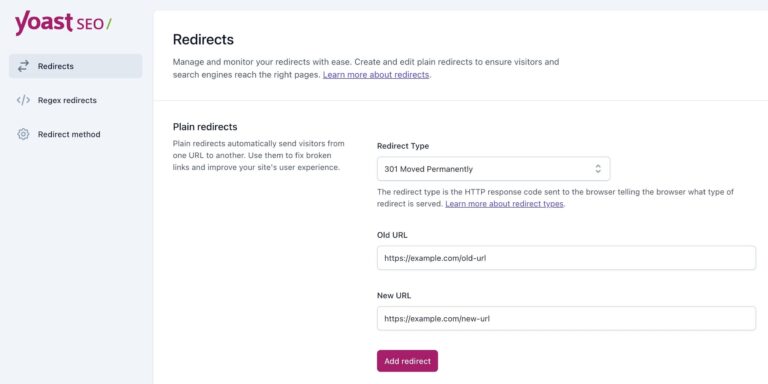
The plugin’s redirect manager feature automatically creates a 301 redirect every time you change a URL or move/delete a page. So even if you forget to set up a redirect, Yoast handles it for you and protects your SEO behind the scenes.
Here’s how the Yoast SEO Premium plugin takes the stress out of the process:
- Automatically creates redirects when you change or delete a URL
- Prevents 404 errors by forwarding visitors to the correct page
- Let you choose the right redirect type (301, 302, 307, 410, etc.)
- Organises all redirects in one clean dashboard
- Supports advanced options like REGEX redirects and import/export
With Yoast SEO Premium, you don’t have to remember any of these steps. You change the permalink, and the plugin handles the redirect instantly, keeping your SEO, structure, and user experience intact.
A smarter analysis in Yoast SEO Premium
Yoast SEO Premium has a smart content analysis that helps you take your content to the next level!
Step 3: Change your permalink structure
Once your redirects are ready, you can safely update your permalink in the WordPress editor or change the global permalink settings. At this point, you won’t break any links because your redirects are already in place.
Permalink best practices to prevent frequent changes
A well-structured permalink saves you from future headaches. Here are the best practices to follow every time you create a new permalink on your WordPress site.
Keep your permalink short, simple, and descriptive
A slug should not look like a full sentence. It should act like an address that clearly tells users and search engines what the page is about. Shorter permalinks are easier to read, share, and understand. For example, /improve-seo-2025/
Use your target keyword naturally
Your main keyword should appear in the slug, but only once. This helps search engines identify the topic without making your URL look spammy. For example, /what-is-a-permalink/.
Use hyphens to separate words
Hyphens are the correct standard for URLs. Search engines read them as natural separators between words.
Avoid:
- Underscores (my_post)
- Spaces (my%20post)
- Words combined without separation (mypost)
Always write them like this: yourdomain.com/chocolate-cake
Use dates with care
As mentioned earlier, dates can be particularly helpful for news sites or when covering strictly time-sensitive topics. However, for most blogs and business websites, dates in permalinks can make your content appear outdated, even when it remains relevant. Therefore, when possible, choose evergreen URLs, such as /best-yoga-poses/.
Use lowercase letters in all URLs
Since URLs can be case-sensitive, uppercase and lowercase versions of the same slug may be treated as distinct pages. This can cause duplicate content issues. Always stick to lowercase, such as: yourdomain.com/types-of-tea.
Encode special characters and emojis
If your slug includes accented characters (ä, å, ö) or emojis (which you should avoid using), they must be encoded using UTF-8. Without encoding, browsers may break the URL or cause crawl errors.
Encoding ensures the permalink displays correctly and remains accessible to search engines.
Stay consistent with your permalink structure
Whether you are using /blog/%postname%/ or placing all service pages under /services/%postname%/, choose one approach and follow it for the entire site; consistency improves navigation, user experience, and SEO.
Your permalinks are your digital foundation
Your permalink structure may appear simple on the surface, but it silently supports the way users and search engines interact with your site. A clear and consistent URL helps readers understand your content, builds trust, reduces confusion, and prevents the need for constant changes later. It also provides search engines with a clear path to follow, which enhances your overall SEO performance.
By keeping permalinks short, descriptive, and keyword-focused, avoiding unnecessary stop words, choosing hyphens, maintaining consistency in formats, and using lowercase letters, you create a structure designed to last. These small choices make your URLs easy to share, maintain, and understand by Google.
With the right permalink strategy and the help of tools like Yoast SEO for managing redirects and site structure, you can build a solid foundation that supports your content for years to come.
Your URLs are not just technical details. They are part of your site’s identity. Treat them with care, and they will continue to guide search engines and users to the right place every time.
The post What are permalinks? How to optimize them for SEO appeared first on Yoast.